After creating a property in your RocketRent dashboard, you can add all pertinent information about the property itself, or each rental unit if there is more than one. You can always update your property's information as needed, and all details are stored in a single location.
Add Unit Information
- Click View next to the unit you wish to edit
- If your property only has one unit, the single property address will be listed under your units
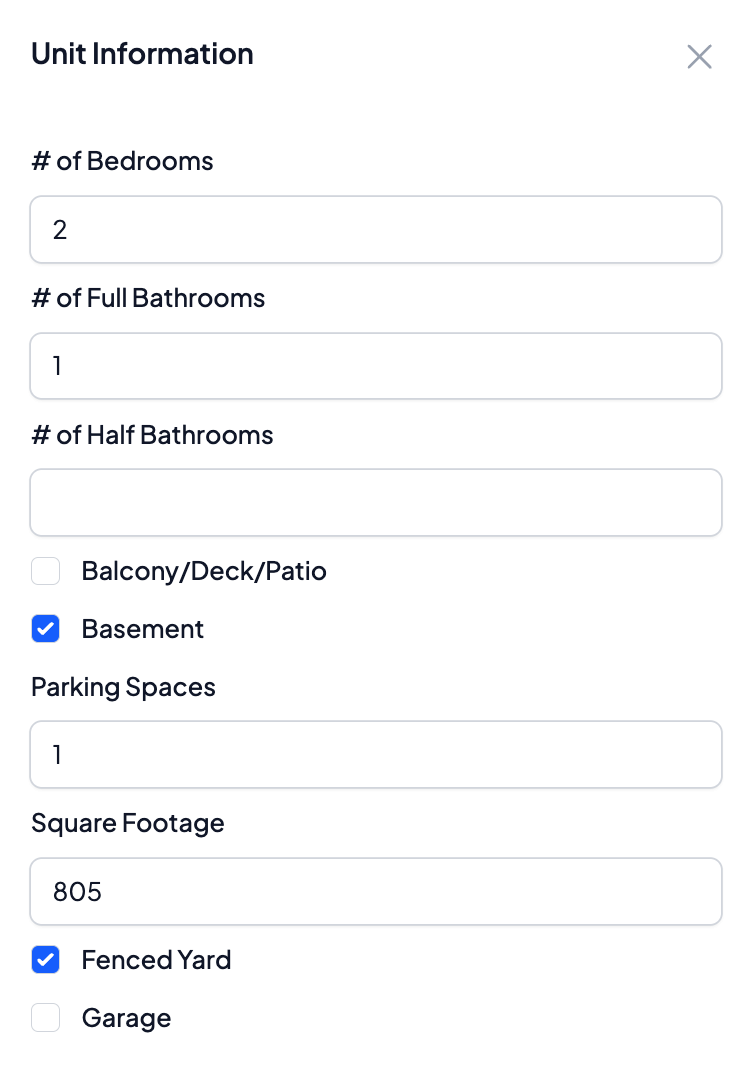
- Click Add/Edit next to the "Unit Information" section to confirm if the property's details:
- Click Save
- Once saved, your information will populate under the property's "Info" dashboard in the appropriate section
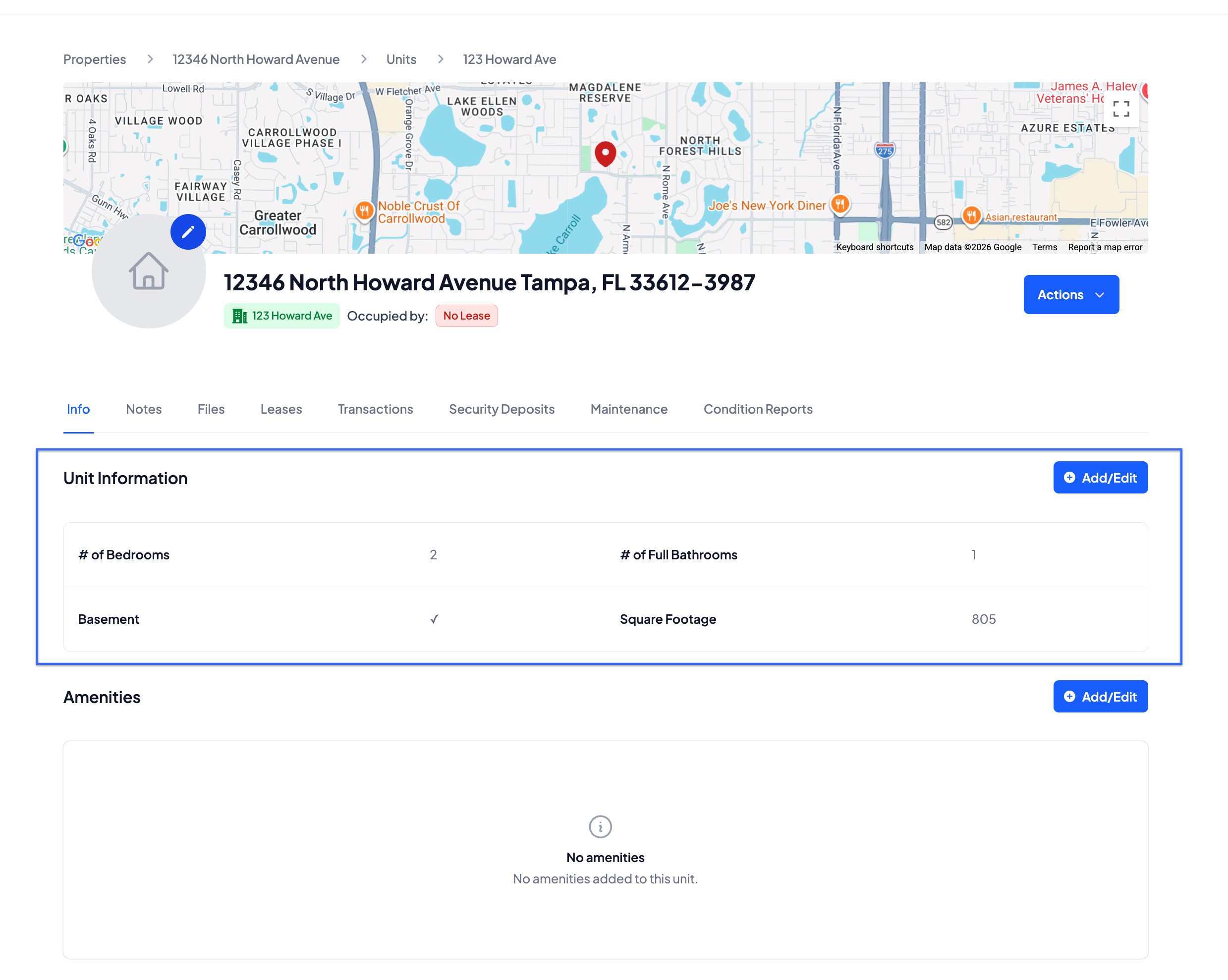
- Once saved, your information will populate under the property's "Info" dashboard in the appropriate section
Add Amenities
- Click Add/Edit next to the "Amenities" section to confirm which amenities are included with the rental property
- If you need to add an additional amenity, click Other
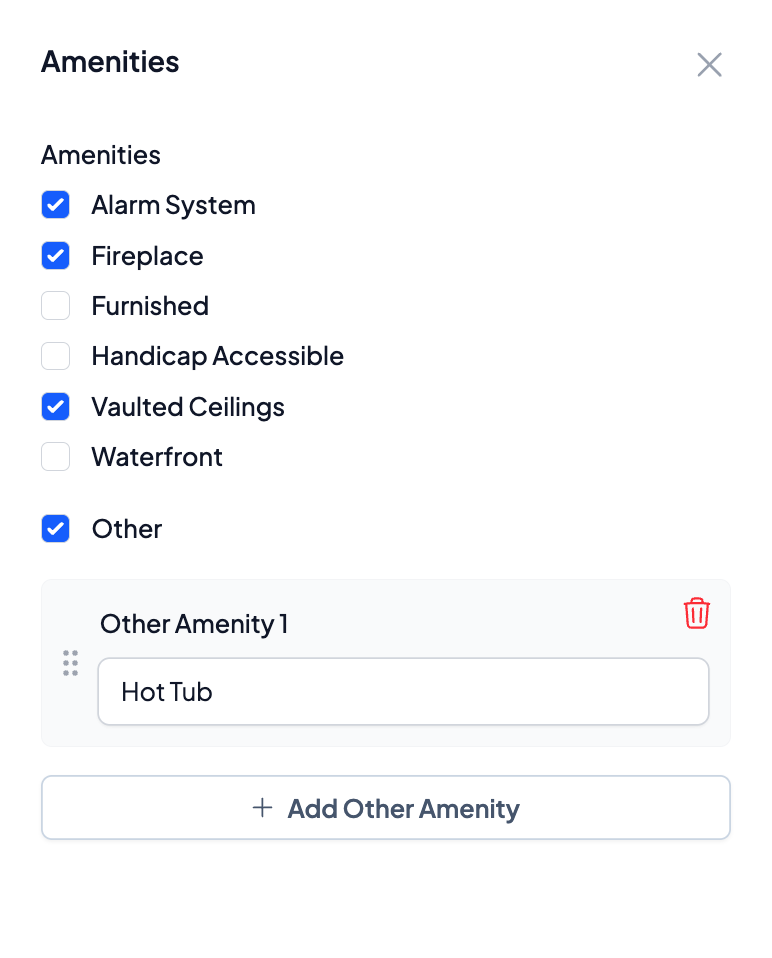
- If you need to add an additional amenity, click Other
- Click Save
Add Utilities
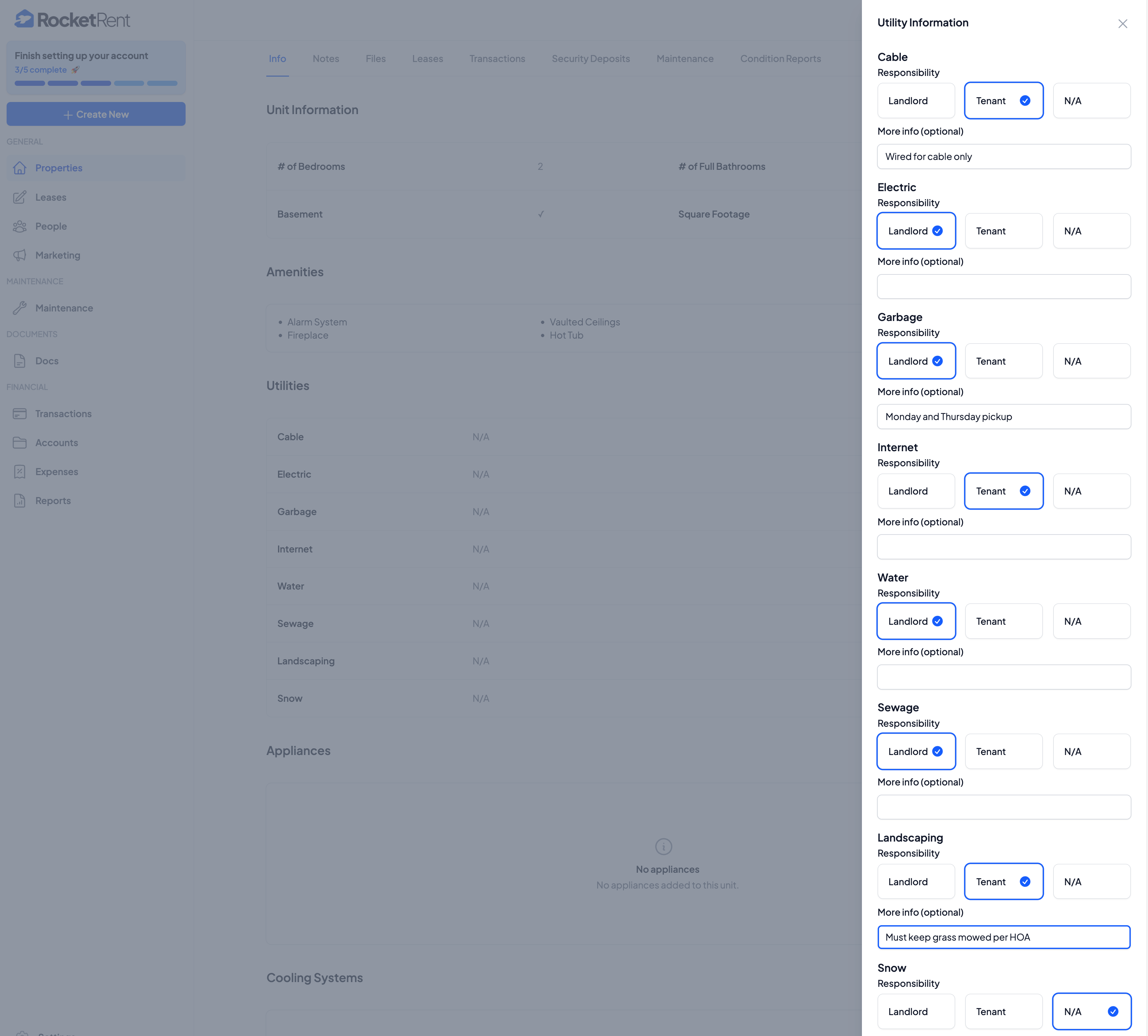
- Click Add/Edit next to the "Utilities" section to confirm what utilities are included with the rental property
- You can designate whose responsibility it is to cover the cost of each utility in this section: Landlord or Tenant
- If you need to add additional information for any utility, add it under More info (optional)
- Click Save
Add Appliances
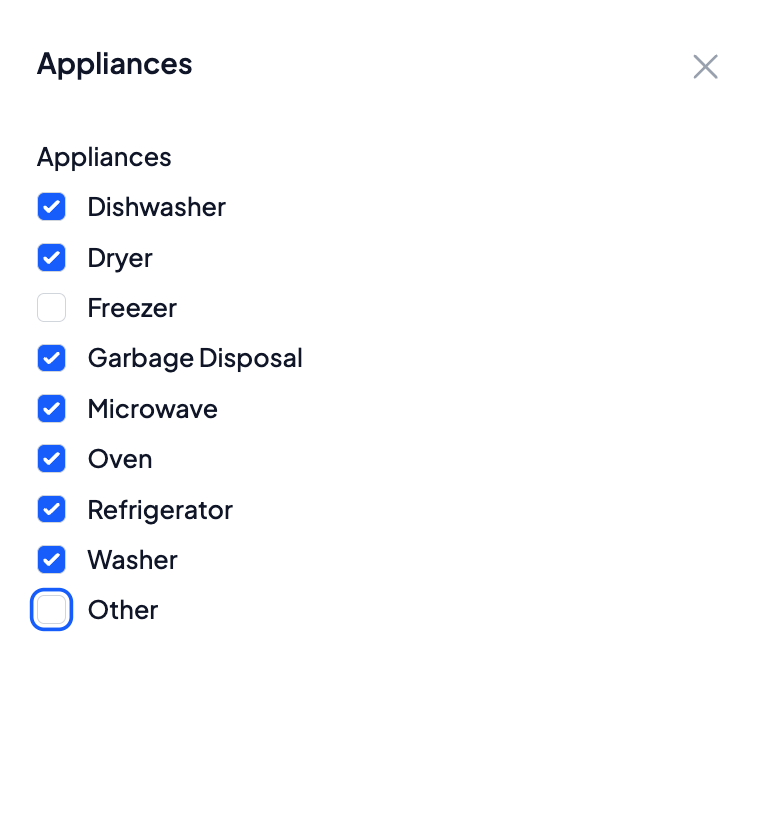
- Click Add/Edit next to the "Appliances" section to confirm which appliances are included with the rental property
- If you need to add an additional amenity, click Other
2. Click Save
Add Cooling Systems
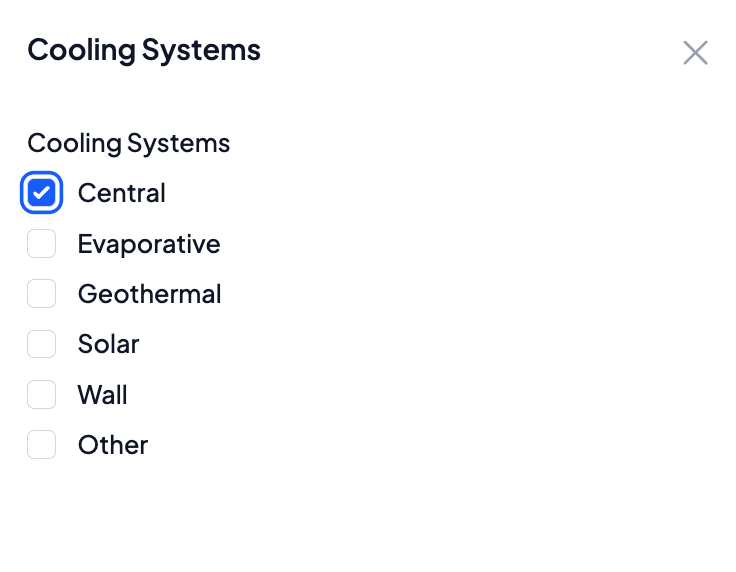
- Click Add/Edit next to the "Cooling Systems" section to confirm which cooling system the rental property offers
- Click Save
Add Heating Systems
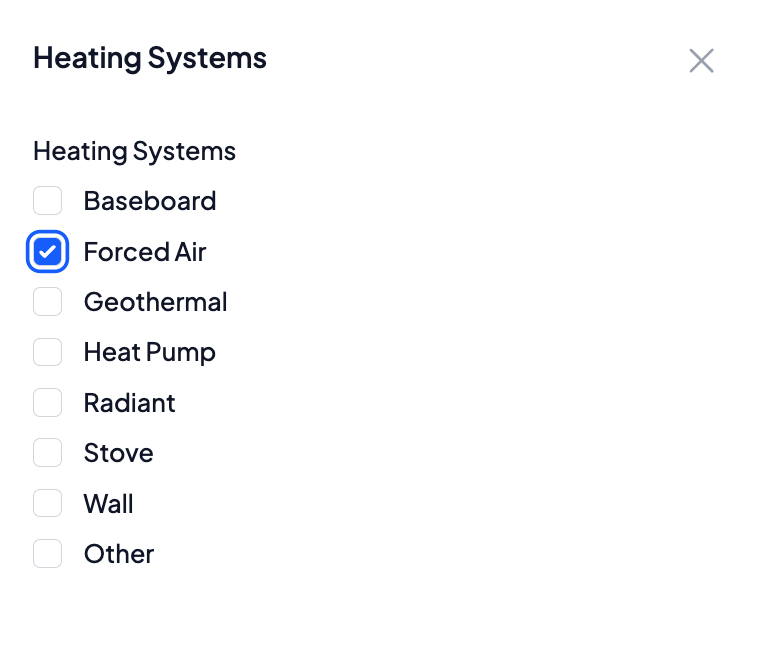
- Click Add/Edit next to the "Heating Systems" section to confirm which heating system the rental property offers
- Click Save
Add Floor Coverings
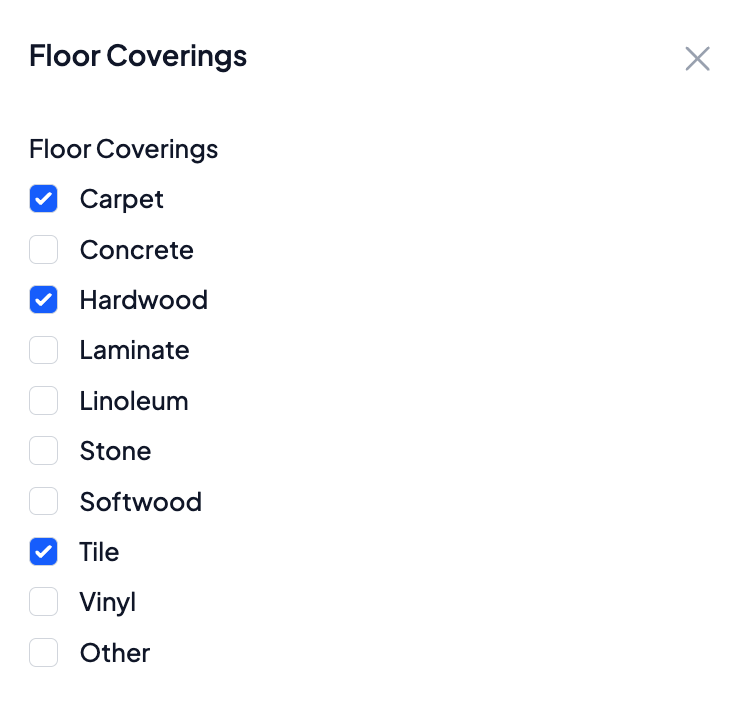
- Click Add/Edit next to the "Floor coverings" section to confirm which type of flooring the rental property has
- Click Save
Once all of your property information is saved, your Property Info homepage will reflect all of the details you entered. 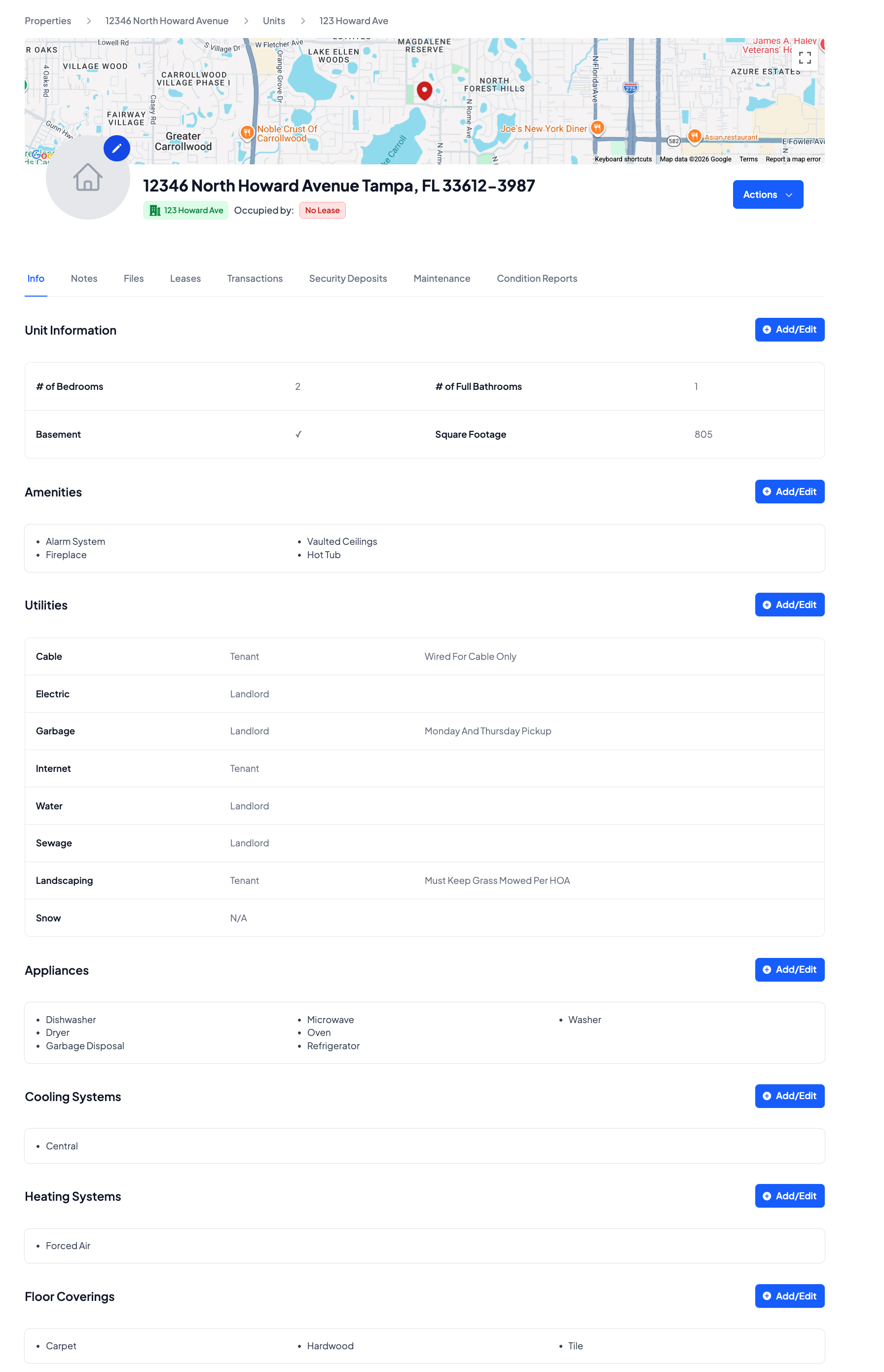
Was this article helpful?
That’s Great!
Thank you for your feedback
Sorry! We couldn't be helpful
Thank you for your feedback
Feedback sent
We appreciate your effort and will try to fix the article